If you have decided to spend a large amount of money to own an S7 or S7 Edge, please refer to the tips below to optimize them.
Samsung Galaxy S7/S7 Edge, after much anticipation, has officially launched and gone on sale in the Vietnamese market. This duo is considered the best smartphone at the present time camera. camera Outstanding focus, powerful performance, comes with many useful features such as waterproof, curved screen, memory card support, 2 SIM, etc.
However, to own this super product duo, users will have to pay a large amount of money, and optimizing them is not an easy step. The article below will guide you to understand some preinstalled applications on Samsung Galaxy S7 and S7 Edge with advice on whether to keep or delete them.
Delete or disable unnecessary apps
After buying yourself a Samsung Galaxy S7 or S7 Edge, you will definitely be extremely excited to test out features like photography, curved screen, and downloading new applications. However, there is one important thing that will help you increase your experience, as well as increase the speed of your device, which is to delete previously installed applications.
Normally, Samsung Galaxy lines will install one to several applications from the manufacturer. If you buy laptops, or foreign network-locked versions, this amount of applications is even denser.
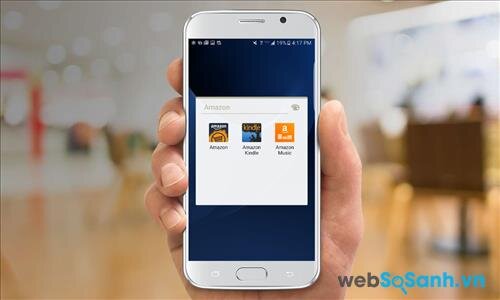
If you are a frequent buyer at Amazon, or intend to buy online in the future, keeping this application will help improve our usage experience.
Amazon Kindle – It depends
If you are someone who likes to read book online, and buy books, Amazon Kindle is a useful application for us. On the contrary, it is completely useless if you do not intend to read books on Amazon’s system.
Amazon Music – Should be deleted
There are many good online music services today, and Amazon Music doesn’t really stand out.
Facebook – Should be deleted
Facebook is one of the applications that may be preinstalled when you first buy your device. Unfortunately, although Facebook is very popular, Facebook apps on the Android operating system consume a large amount of battery. Instead, you can use a free app called “Metal for Facebook”, which also provides full Facebook experiences while saving more battery.
– With Samsung applications:
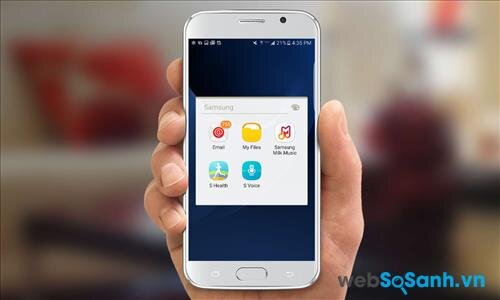
Memo – Should keep
A quite useful application that helps you manage personal notes every day
My Files – Should keep
When you download documents, files, or pictures, photos, videos from email or on the Internet, we certainly want a system to help manage those files, and My Files is very useful in this.
Samsung Gear – Consideration
Samsung Gear is a Samsung application that allows connection to the device smart watch same company name. Therefore, it is only useful when you own this product.
Samsung Milk Music – Delete
Produced by Slacker, the Milk Music application allows us to stream radio through more than 200 different stations, along with Pop, Rock, Hip Hop and Latin music genres. However, it is only useful in countries with many broadcasting stations and channels such as the US and Korea.
S Health – Should keep
S Health is a health monitoring and consulting application for exercise and sports users. Specifically, it can display information about the number of calories we burn during the day, distance traveled, monitor heart rate, etc.
S Voice – Should keep
Samsung’s S Voice application is not only used in a virtual assistant – helping you use your smartphone hands-free, but is also a condition for using applications such as S Translator, Voice Memo and Car Mode.
How to delete/disable pre-installed applications
For some applications, we cannot completely delete them, but can only disable them so that they do not take up a lot of memory space and do not display “annoying” notifications.
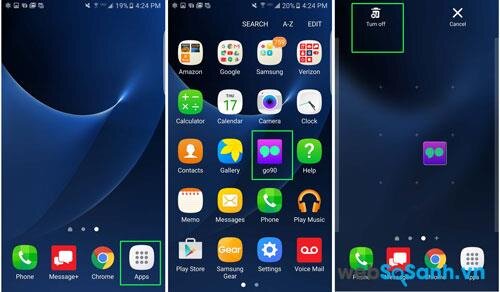
To disable an application, users need to press and hold the application in the application list panel. Then drag them to the trash icon (Turn Off) in the upper left corner of the screen.

 https://orcid.org/0009-0009-1599-2739